
Excel Basics: Master 5 Essential Functions Every Beginner Must Know
If searching for Excel basics formulas to get started fast, this guide breaks down the top five functions every beginner uses daily: SUM, AVERAGE, COUNT, MIN, and MAX. Whether building your first spreadsheet, managing a small business, or creating simple reports, mastering these functions will save you time and unlock real insights.
So are new to Excel? Here are the TOP 5 Basic functions everyone wishes they learned first.
Master the basics, MasterTheSheets!
Why Learning Basic Excel Functions is Crucial
Excel formulas are the foundation for spreadsheet productivity and data-driven decisions. They help automate calculations, analyze sales, track budgets, and organize data effortlessly. Learning these basic Excel functions for beginners means you can quickly answer questions like:
- How do I calculate total sales in Excel?
- What formula gives the average value of my dataset?
- How to count entries without errors automatically?
- Which product sold the most or least using Excel?
Getting these answers right is key to using Excel efficiently and confidently.
The 5 Functions You Need to Know
Let’s explore how to use these five essential functions with a simple farmer’s market sales dataset, perfect for replicating in Excel or Google Sheets.
SUM – How to Calculate Totals
Use =SUM(range) to add all numbers in a selected range – ideal for totalling revenue or expenses.
Example: Calculate total sales from all products.
=SUM(F3:F9)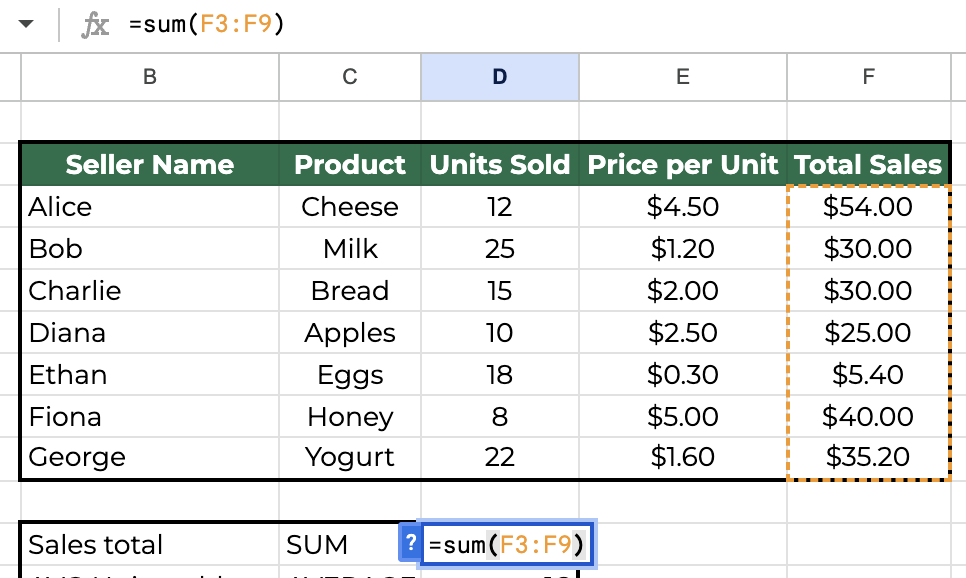
AVERAGE – Find the Mean Value Quickly
Use =AVERAGE(range) to get the average value, helping with trend analysis or average sales per product.
Example: Calculate average units sold.
=AVERAGE(D3:D9)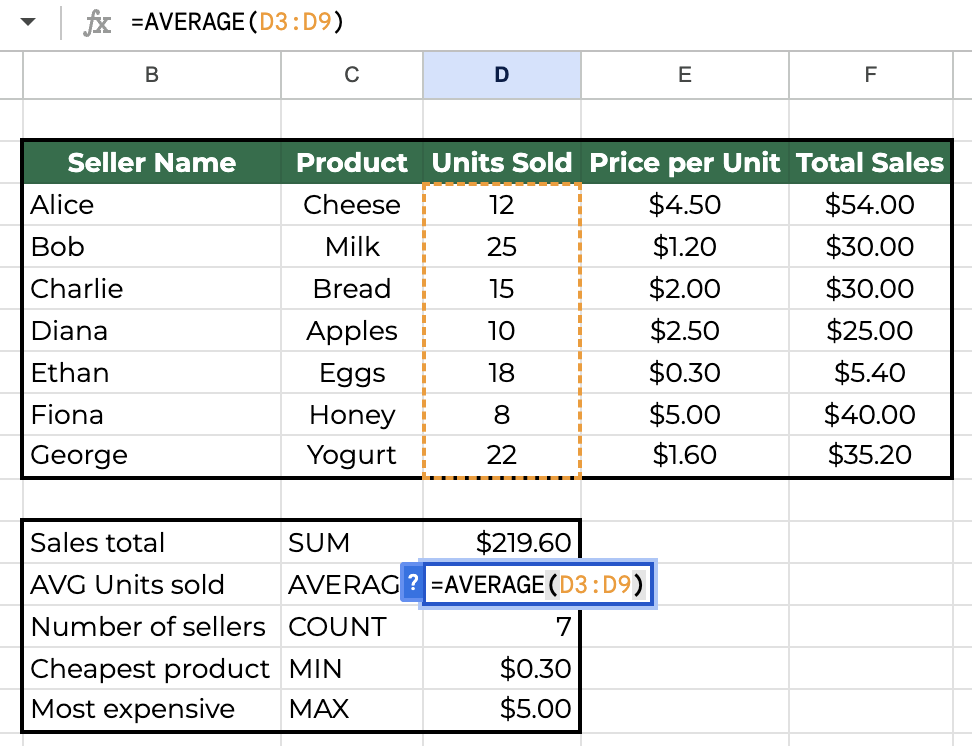
COUNT – Count Numeric Entries Fast
COUNTA – Count any values
Use COUNT(RANGE)/COUNTA(range) to count all numbers in a range, useful for counting sales transactions or data points.
Example: Count total sales entries in your dataset.
=COUNT(D2:D8)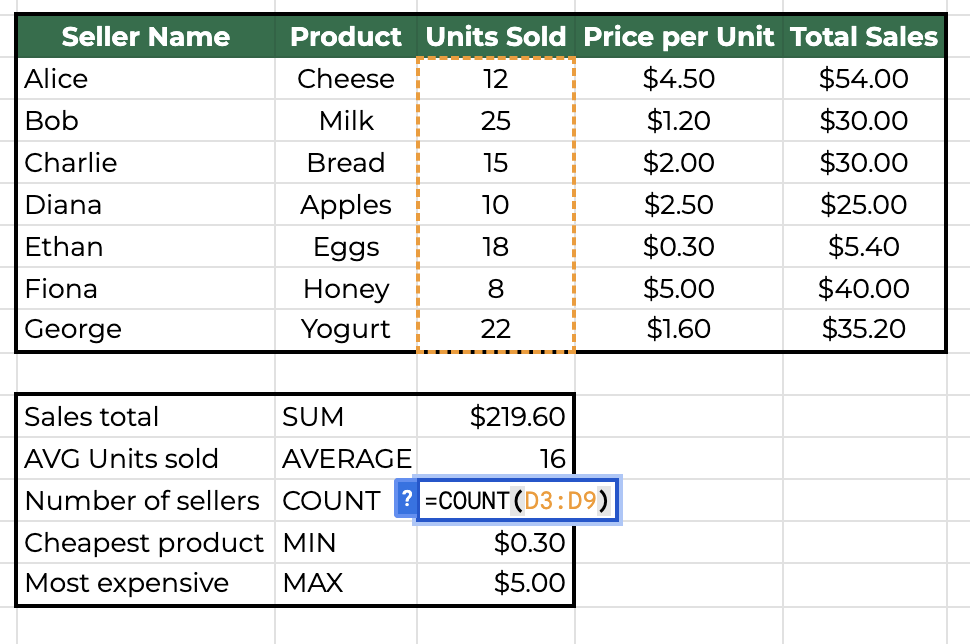
MIN – Find the Lowest Value Easily
Use =MIN(range) to identify the minimum value, helpful for spotting the weakest product or lowest measurement.
Example: Find the cheapest product.
=MIN(E2:E9)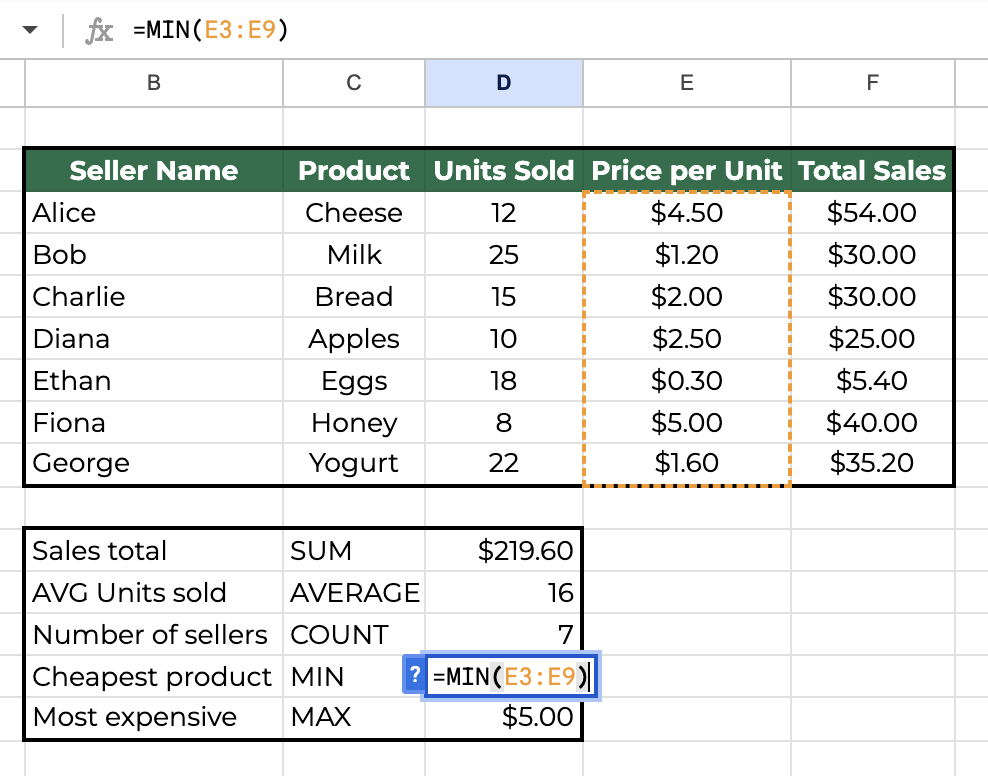
MAX – Identify the Highest Value Instantly
Use =MAX(range) to find the maximum value—perfect for highlighting your best-selling product.
Example: Find the most expensive product.
=MAX(E2:E9)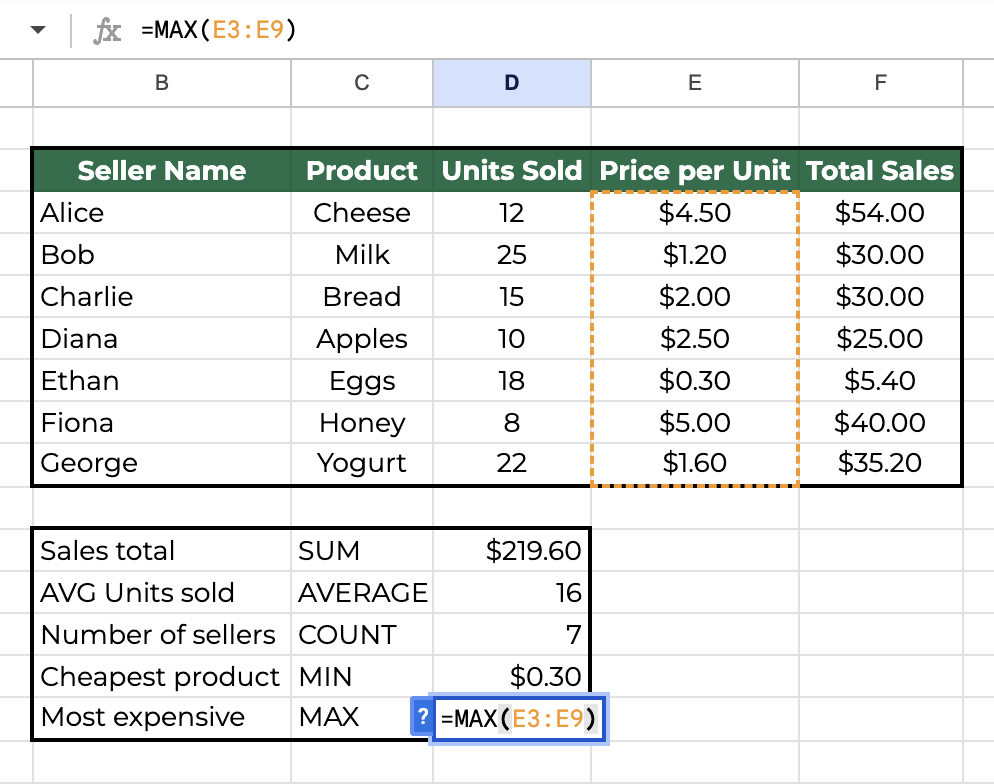
Practical Dataset for Practice
Use this Farmer’s Market sales template styled dataset to practice these formulas yourself:
Name,Product,Units Sold,Price per Unit,Total Sales
Alice,Cheese,12,4.5,54
Bob,Milk,25,1.2,30
Charlie,Bread,15,2,30
Diana,Apples,10,2.5,25
Ethan,Eggs,18,0.3,5.4
Fiona,Honey,8,5,40
George,Yogurt,22,1.6,35.2
Copy this into Excel or Google Sheets and start experimenting with the formulas above.
Pro Tips: Excel Shortcuts and Time-Savers
- Use Excel’s fill handle to quickly copy formulas down columns.
- Label your results clearly for fast understanding.
- Combine with conditional formatting for instant visual insights.
- These basics build the foundation needed before diving into pivot tables, advanced charts, or automation tricks.
Why These Excel Basics Matter for Your Productivity
Mastering these formulas isn’t just for Excel beginners – it’s the best place to start before exploring topics like Excel vs Google Sheets comparisons, templates for SMBs, or how to fix common Excel error messages. Keeping your foundation strong ensures your spreadsheet skills grow smoothly and your reports stay accurate.
Do you want to highlight your results?
Check out our CHART GUIDE.