Google Sheets and Excel shortcuts (cheat sheet)
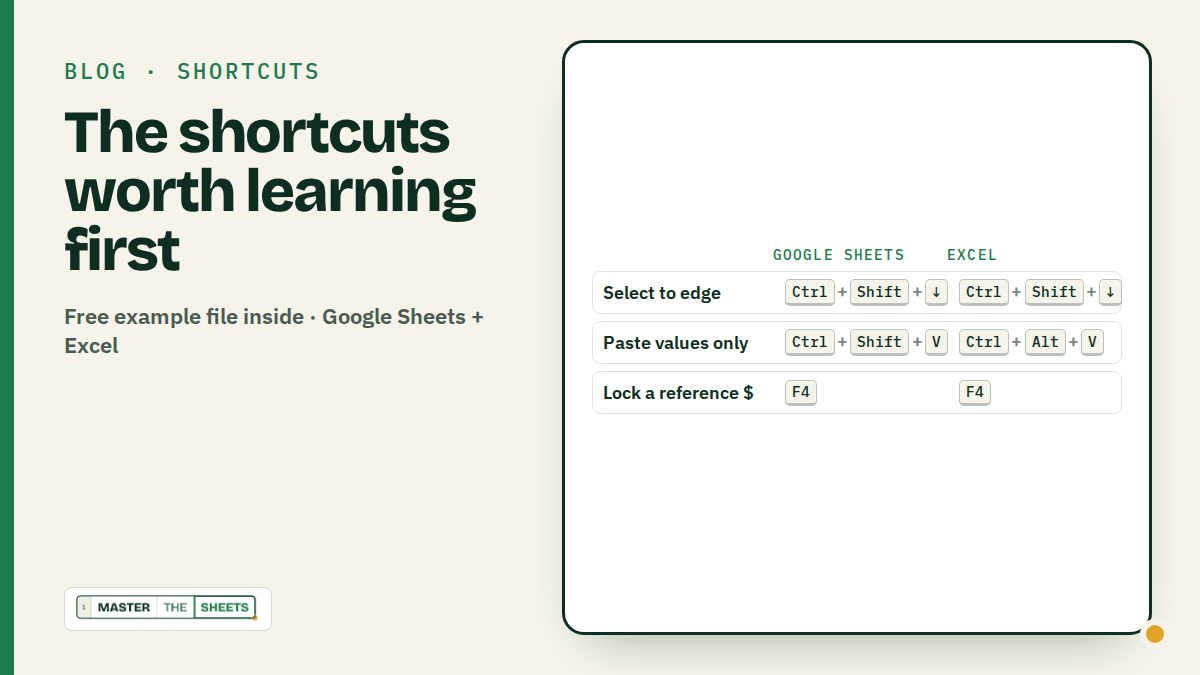
Learn these five first: Ctrl+Arrow jumps to the edge of your data, Ctrl+Shift+Arrow selects it, Ctrl+Shift+V pastes values only (Excel: Ctrl+Alt+V, V, Enter), Ctrl+D fills down and F4 locks a reference. On a Mac most of them swap Ctrl for Cmd, but not all, so check the tables.
I have been working as an analyst and in operations leadership roles for 5+ years.
It goes without saying that using Excel took up a very significant part of my daily job anywhere I worked.
I collected and hand-selected the top tricks and shortcuts that literally saved long hours for me.
You can see them below:
How to read the tables
Ctrl+Shift+V       hold Ctrl and Shift, then tap V
Ctrl+Alt+V, V      press Ctrl+Alt+V, let go, then press V
Arrow              any of the four arrow keys
Alt+↓ / Alt+↑ two shortcuts: next / previous- Sheets (Windows): Google Sheets in a browser on Windows.
- Sheets (Mac): Google Sheets in a browser on a Mac.
Ctrlhere really means the Control key, not Cmd. - Excel (Windows): the Excel desktop app on Windows.
- Excel (Mac): the Excel desktop app on a Mac. On a MacBook you may need
Fnfor the F keys and for Home/End.
Every shortcut below was checked against Google's and Microsoft's own shortcut pages. There are 25, grouped the way you actually work: move, select, change, make it look right.
1. Navigate: stop scrolling
You have 3,000 rows of orders and need the last one. Scrolling takes 20 seconds. Ctrl+↓ takes none.
| Shortcut | Sheets (Windows) | Sheets (Mac) | Excel (Windows) | Excel (Mac) |
|---|---|---|---|---|
| Jump to the edge of the data | Ctrl+Arrow | Cmd+Arrow | Ctrl+Arrow | Cmd+Arrow |
| Go to the top of the sheet | Ctrl+Home | Cmd+Fn+← | Ctrl+Home | Ctrl+Home |
| Go to the last used cell | Ctrl+End | Cmd+Fn+→ | Ctrl+End | Ctrl+End |
| Next / previous tab | Alt+↓ / Alt+↑ | Option+↓ / Option+↑ | Ctrl+PgDn / Ctrl+PgUp | Option+→ / Option+← |
Pro tip: Ctrl+Arrow stops at the first empty cell. If it lands in the middle of your data, you have a gap. Press it again to jump over it, and maybe fix the gap.
2. Select: grab the whole block
The same arrows, plus Shift, select everything on the way.
| Shortcut | Sheets (Windows) | Sheets (Mac) | Excel (Windows) | Excel (Mac) |
|---|---|---|---|---|
| Select to the edge of the data | Ctrl+Shift+Arrow | Cmd+Shift+Arrow | Ctrl+Shift+Arrow | Cmd+Shift+Arrow |
| Select the whole column | Ctrl+Space | Ctrl+Space | Ctrl+Space | Ctrl+Space |
| Select the whole row | Shift+Space | Shift+Space | Shift+Space | Shift+Space |
| Select all | Ctrl+A | Cmd+A | Ctrl+A | Cmd+A |
Pro tip: Ctrl+Shift+↓ then Ctrl+Shift+→ selects a whole table from its top-left corner, however big it is. Look at the bottom-right of the screen: the sum and count of the selection are already there.
3. Edit: the ones that pay the rent
Paste values only is the star of this group. You copy a column of formulas, paste it as plain numbers, and nothing breaks when you delete the source.
| Shortcut | Sheets (Windows) | Sheets (Mac) | Excel (Windows) | Excel (Mac) |
|---|---|---|---|---|
| Edit the active cell | Enter | Return | F2 | F2 |
| Paste values only | Ctrl+Shift+V | Cmd+Shift+V | Ctrl+Alt+V, V, Enter | Ctrl+Cmd+V, pick Values |
| Fill down | Ctrl+D | Cmd+D | Ctrl+D | Cmd+D |
| Fill the whole selection | Ctrl+Enter | Cmd+Return | Ctrl+Enter | Cmd+Return |
| Insert today's date | Ctrl+; | Cmd+; | Ctrl+; | Ctrl+; |
Pro tip: Ctrl+Enter fills every selected cell at once. Select 50 cells, type Pending, press Ctrl+Enter: 50 cells say Pending. It works with formulas too, and the references adjust.
4. Format: numbers that look like money
Three number formats cover most of what you report: money, percentages and big numbers with commas.
| Shortcut | Sheets (Windows) | Sheets (Mac) | Excel (Windows) | Excel (Mac) |
|---|---|---|---|---|
| Currency format ($) | Ctrl+Shift+4 | Ctrl+Shift+4 | Ctrl+Shift+4 | Ctrl+Shift+4 |
| Percent format (%) | Ctrl+Shift+5 | Ctrl+Shift+5 | Ctrl+Shift+5 | Ctrl+Shift+5 |
| Number format (1,234.50) | Ctrl+Shift+1 | Ctrl+Shift+1 | Ctrl+Shift+1 | Ctrl+Shift+1 |
| Outline border | Ctrl+Shift+7 | Cmd+Shift+7 | Ctrl+Shift+7 | Cmd+Option+0 |
Excel's help page writes these as Ctrl+Shift+$, Ctrl+Shift+%, Ctrl+Shift+! and Ctrl+Shift+&. On a US keyboard those are the same keys as 4, 5, 1 and 7. One difference: Excel's percent format has no decimals (12%), Google Sheets usually shows two (12.00%).
5. Formulas: lock it and check it
| Shortcut | Sheets (Windows) | Sheets (Mac) | Excel (Windows) | Excel (Mac) |
|---|---|---|---|---|
| Lock a reference ($A$1) | F4 | Fn+F4 | F4 | Cmd+T or F4 |
| Show all formulas | Ctrl+~ | Ctrl+~ | Ctrl+` | Ctrl+` |
Press F4 while your cursor is on a reference in a formula. It cycles A1 → $A$1 → A$1 → $A1 → A1. That's the $ locking from the White Belt course, without typing a single dollar sign.
Pro tip: before you send a sheet to your boss, press Ctrl+~ (Excel: Ctrl+` ). Every formula shows up as text. Typed numbers where a formula should be are easy to spot. Press it again to switch back.
6. Rows and columns: add and remove in one move
| Shortcut | Sheets (Windows) | Sheets (Mac) | Excel (Windows) | Excel (Mac) |
|---|---|---|---|---|
| Insert rows or columns* | Ctrl+Alt+= | Cmd+Option+= | Ctrl+Shift+= | Ctrl+Shift+= |
| Delete rows or columns* | Ctrl+Alt+- | Cmd+Option+- | Ctrl+- | Cmd+- |
| Add a new tab | Shift+F11 | Shift+Fn+F11 | Shift+F11 | Shift+F11 |
* Select the rows or columns first with Shift+Space or Ctrl+Space. In Excel, Ctrl+Shift+= and Ctrl+- open a small box when only a cell is selected; with whole rows selected they act straight away.
7. Data: find, fix and filter
| Shortcut | Sheets (Windows) | Sheets (Mac) | Excel (Windows) | Excel (Mac) |
|---|---|---|---|---|
| Find and replace | Ctrl+H | Cmd+Shift+H | Ctrl+H | Ctrl+H |
| Turn a range into a table | Ctrl+Alt+T | Cmd+Option+T | Ctrl+T | Cmd+T |
| Open a filter menu (filter on) | Ctrl+Alt+R | Ctrl+Cmd+R | Alt+↓ | Option+↓ |
Pro tip: the filter menu shortcut only works when the filter is already on and you're on a header cell. In Excel, Ctrl+Shift+L (Mac: Cmd+Shift+F) turns the filter on. Google Sheets has no documented key for it: use Data → Create a filter.
Excel-only bonus: Alt+= (Mac: Cmd+Shift+T) writes a SUM for you, Ctrl+1 (Mac: Cmd+1) opens Format Cells, and Alt+Enter (Mac: Option+Return) starts a new line inside a cell.
Common mistakes
- Assuming Mac = Cmd everywhere. Select column is
Ctrl+Spaceon a Mac too, and in Google Sheets the number formats stayCtrl+Shift+4,5and1. Excel for Mac uses Ctrl for dates and formats. - Pressing Enter to edit in Excel. In Google Sheets,
Enteropens the cell for editing (F2works too). In Excel,Enterjust moves you down a cell: useF2. - Expecting
Ctrl+Shift+Vin every Excel. Newer Microsoft 365 versions have it, older ones don't. The route that works everywhere is Paste Special:Ctrl+Alt+V, thenV, thenEnter. - F keys that do nothing on a laptop. On many laptops F4 changes the volume or the brightness. Hold
Fn(Fn+F4). - Different keyboard layouts. Google notes that the date shortcuts differ in some countries (Germany, Spain, Italy, Portugal use
Ctrl+Shift+D). If a symbol key doesn't work, check your layout.
FAQ
How do I see every shortcut in Google Sheets? Press Ctrl+/ (Mac: Cmd+/). A list of the common shortcuts opens right inside the sheet.
Are Google Sheets and Excel shortcuts the same? On Windows, 18 of the 25 above use the same keys (Ctrl+~ and Ctrl+` are one key). The ones that differ: editing a cell, paste values, switching tabs, inserting and deleting rows, tables and the filter menu. On a Mac only 11 match, so the Mac columns are worth a second look.
Why doesn't F4 lock my reference? Your cursor must be inside the formula, on or right after the reference. On a Mac or a laptop try Fn+F4; in Excel for Mac Cmd+T does the same.
What's the fastest way to paste values in Excel? Ctrl+Alt+V, V, Enter works in every recent Windows Excel. Microsoft 365 has been adding Ctrl+Shift+V for paste values too, so try it: if it works in your version, use it.
Keep going
- Practise
F4on real formulas in the free White Belt course: the $ locking lesson, with instant feedback. - Next read: Every spreadsheet error and how to fix it, and The FILTER function in Google Sheets.
Written by MasterTheSheets